
To migrate from ClassForKids to a sports activity CRM, plan the move around your records and daily workflows. Organise the information you need, map it to the new system, then test bookings, payments and attendance before going live. A controlled transition helps you spot gaps early and prepare parents and staff for the change.
Changing systems can feel risky when bookings, payment records and parent updates all need to stay coordinated. Treat migration as more than a data transfer: it is also an opportunity to bring registration, communication and club administration together in a clearer workflow.
This guide covers how to plan the move, transfer booking and participant information, and prepare payment processes, parent communication, attendance records and staff onboarding. It also explains how specialist software for sports clubs, studios and camps can support your organisation’s workflows, helping you build a practical transition plan and avoid preventable surprises.
Key Takeaways
- Map your booking, payment and parent communication processes before moving records, so you can test the full customer journey in the new system.
- Plan how staff will check participants in and keep attendance records accurate, including how absences and changes are recorded.
- Prepare for onboarding by organising the information you need, assigning responsibilities and giving staff time to practise key workflows.
- Assess whether specialist sports software can support the mix of clubs, sessions, courses, camps and events your organisation runs.
- Compare CRM features against your daily needs, from online registration and fee collection to participant management and operational oversight.
Bookings, payments and parent communication
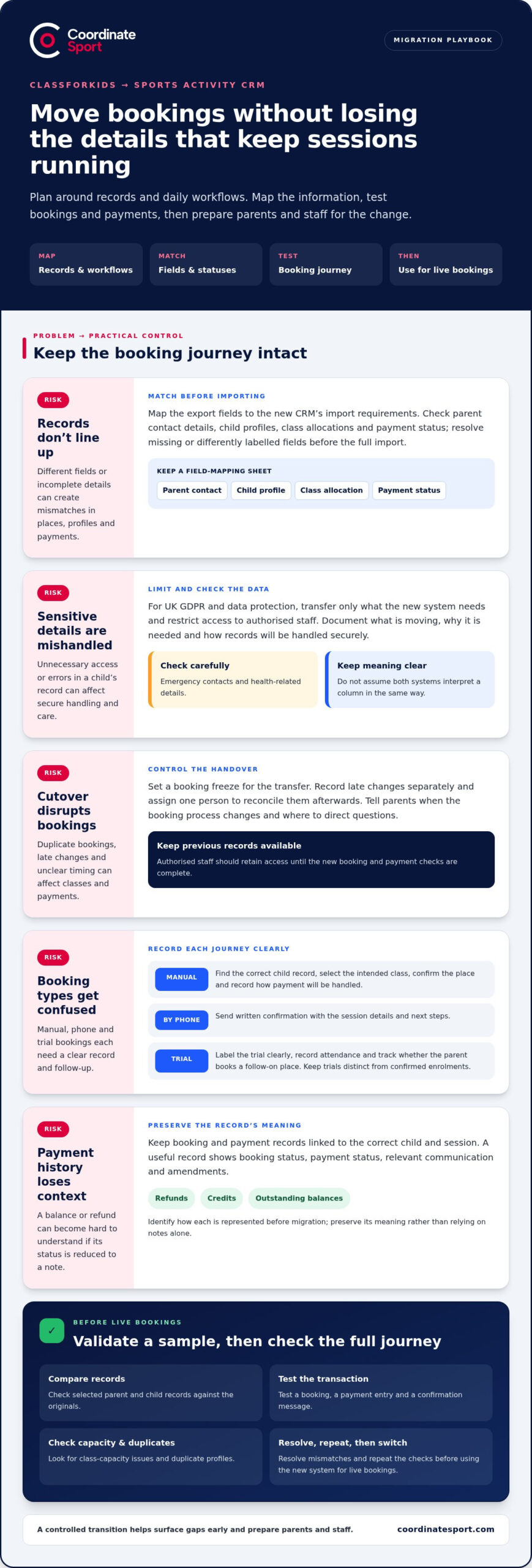
Map each booking step, from a parent’s first enquiry to confirmation of a child’s place. Record session names, dates, capacity, eligibility details and booking conditions. Then decide what must move, what needs correcting and who will approve changes. For example, compare a current class list with the destination system before opening bookings. This helps prevent mismatched places and gives staff a clear process for handling enquiries during the transition.
For UK GDPR and data protection, treat children’s information as sensitive operational data: transfer only what the new system needs and restrict access to authorised staff. Document what is moving, why it is needed and how records will be handled securely. Review emergency contacts and health-related details carefully, since errors could affect a child’s care during an activity.
File formats and integrations depend on the export options in the system you’re leaving and the import requirements of the new CRM. Match fields such as parent contact details, child profiles, class allocations and payment status before transferring records. Keep a field-mapping sheet and resolve missing or differently labelled fields before the full import. Don’t assume both systems interpret a column in the same way.
Duplicate bookings, incomplete records, mismatched payment statuses and unclear cutover timing can disrupt classes and payments. Reduce the risk by setting a booking freeze for the transfer, recording late changes separately and assigning one person to reconcile them afterwards. Tell parents when the booking process changes and where to direct questions. Keep previous records available to authorised staff until the new booking and payment checks are complete.
For a manual booking, find the correct child record, select the intended class, confirm the place and record how payment will be handled. If a parent books by phone, send written confirmation with the session details and next steps. For a trial booking, label the trial clearly, record attendance and track whether the parent books a follow-on place. This lets staff review trial-to-enrolment activity without confusing trial places with confirmed enrolments.
Keep parent booking and payment records linked to the right child and session. A useful record shows the booking status, payment status, relevant communication and any amendments, so staff can respond consistently. Before migration, identify how refunds, credits and outstanding balances are represented. Preserve their meaning rather than relying on notes alone.
Validate a sample before moving the complete dataset. Compare selected parent and child records with the originals, then test a booking, payment entry and confirmation message. Check class capacity and look for duplicate profiles. Resolve mismatches, repeat the checks and only then use the new system for live bookings.
Registers, check-in, and attendance reporting
Build each register around the session staff are delivering, not just the participant list. For a recurring football class, carry forward the correct child, class, term and attendance status. Keep gymnastics groups separate if they use different venues or staff. This helps prevent a child appearing on the wrong register after migration. Before the move, agree how to record present, absent, late arrival and authorised collection.
Use a consistent check-in routine at every session. Staff should open the register for the right class, match each child to their record and mark attendance as it happens. If a child is absent, record the absence rather than removing the booking. For a late arrival, update the register and note the arrival time if your process requires it. Clear statuses give managers a reliable record for follow-up and reporting.
Recurring classes need careful term management. Separate a child’s ongoing enrolment from attendance at each individual session. This lets staff see whether a place remains active even when a child misses a week. During migration, compare the new register with the current term list, then check future sessions and class changes. Keep cancelled enrolments separate from missed attendance, so a cancellation doesn’t erase useful history.
Set an illness process that staff can follow. In the UK, children attending Move It Sports Coaching camp must be symptom-free from sickness or diarrhoea for at least 48 hours before returning. If a child becomes unwell during camp, their parent or guardian will be contacted and must arrange immediate collection. Record the absence and relevant communication in the correct child’s record, then brief staff responsible for the next check-in.
Agree how attendance relates to cancellation and refund decisions before loading records. A missed session, a cancelled place and a class cancelled by the provider are different events. Keep each identifiable, with its date, class and action taken. Don’t infer a refund from an absence entry; record the payment decision separately under the organisation’s policy. This makes later enquiries easier to investigate without changing the historical attendance record.
Validate attendance data before staff rely on it. Select examples from recurring football and gymnastics classes, then compare names, session dates, enrolment status and previous attendance. Check that duplicate child profiles haven’t split one person’s history. Ask a staff member to run a sample check-in and correct a test absence. Finally, compare attendance reports with the source registers, resolve differences and brief the team on the new workflow.
Onboarding and setup support
Treat onboarding as a managed change, not a single data upload. Start by naming an internal owner who understands bookings, payments and class administration. Ask another person to review decisions and test the setup. For example, a school running weekday sessions and a weekend academy can map each programme separately. This keeps enrolment rules, staff responsibilities and customer messages clear from the outset.
Before setup begins, document how your current process works. Note how families register, how staff amend bookings and what happens when a session changes. List the information needed for each activity, such as class descriptions, term dates, age groups and booking conditions. Compare those requirements with the new system’s fields. Resolve duplicate programme names and outdated details before importing data.
Agree the setup sequence with the people who will use the system. A practical order is:
- Configure activities: add sessions, courses and clubs, then review dates, capacity and booking rules.
- Prepare records: map parent and participant details to the right fields, and remove obsolete entries.
- Test workflows: complete a sample registration, booking change and payment recording process.
- Train staff: practise daily tasks using realistic examples, including handling a parent enquiry.
Match training to each role. A manager may need to review enrolment activity and resolve account questions, while a session lead needs to find the right class list. Give staff a short written guide to common tasks. Include a sample scenario, such as moving a child from one session to another, so everyone follows the same process.
Set a clear cutover point for bookings. Before then, tell parents how to access the new booking journey and where to direct questions. Alongside the launch message, share practical details, such as how to find a session and update account information. Avoid changing class rules and system processes at the same time unless necessary. Keeping the transition focused makes parent feedback easier to interpret.
Review the subscription and operational plan together before launch. Confirm which programmes will go live first, who owns routine updates and how staff will manage late changes. You might begin with one course while keeping other sessions on the existing process, but only if records and responsibilities remain distinct. Once staff complete the test tasks accurately, move the agreed programmes across and monitor incoming questions for recurring issues.
After launch, schedule a review of staff feedback, parent enquiries and booking corrections. Group issues by cause, such as unclear activity details or unfamiliar account steps. Update the relevant instructions, then share the revised process with the team. This creates a practical improvement loop and helps the school or academy build confidence through consistent use, rather than relying on one-off training.
Specialist software for sports clubs, studios and camps
A sports club, dance studio and holiday camp may share booking needs, but their operating patterns differ. A club may run recurring sessions across a season, while a camp may manage separate dates and daily attendance. Specialist software should reflect these differences in its activity structure. During selection, map a real example from each programme type and see whether staff can manage it clearly.
Look beyond the booking screen. Management software should connect each activity with participant records, payment status and staff workflows. For example, a studio administrator may need to find a family’s account, check its course booking and update a session place. A camp manager may need a clear view of registrations across activities. Compare these tasks directly instead of judging a system by its feature list alone.
Run a practical test before moving every programme. Ask staff to complete these tasks using sample records:
- Create a recurring club session and adjust its term details.
- Set up a camp activity with separate booking dates.
- Find a participant and review their account history.
- Produce a report that answers a real management question.
Then confirm that the system’s structure suits your organisation’s needs. A multi-site sports club may need staff to distinguish venues and programmes. A single studio may prioritise straightforward course administration. A holiday camp operator may focus on clear daily registrations. These examples can reveal workflow gaps before you transfer live records.
Check how automated processes fit your team’s actual work. Automation can reduce repetitive administration, but only when the trigger and outcome are clear. For example, test what happens when a parent completes a booking, changes a session or cancels a place. Confirm which record changes and which message is sent. Keep a manual route for unusual cases, such as a late class change handled by staff.
Specialist fit also depends on useful reporting. Decide what managers need to see across sessions, courses, clubs and camps. A report might help compare registrations by activity or review attendance trends. Check that staff can interpret the output and use it for planning. If a report requires repeated spreadsheet adjustments, include that extra work in your assessment.
Finally, assess the operating model, not just the software. Identify who maintains activity details, manages participant accounts and supports staff adoption. A system that works for a club’s weekly sessions should also make sense for its camps and events. Use the same sample tasks during demonstrations and onboarding, then record which processes are clear and which need adjustment.
What features should a sports activity CRM provide in the UK?
Choose features based on the work your organisation actually runs. A community club, dance studio and holiday camp may all take bookings, but each needs different activity structures. List your programmes, then match each one to a task the software must support. For example, a club may need to manage recurring sessions, while a camp organises separate activities and events.
Online booking and registration: Parents should be able to find the right session, course, club or camp and submit the information needed to register. Check how the booking journey handles activity details, availability and changes. Test a sample journey for a new participant and another for a returning family. Clear registration steps help reduce confusion before staff need to respond.
Participant accounts: A useful CRM should link parent and child records to the relevant activities. Test how staff find an account, review its bookings and update information. For instance, searching a child’s name should help staff identify the correct session without opening unrelated records. Decide which details your team needs during booking, delivery and follow-up.
Payments and fee collection: Review how payment information relates to a booking. Test a completed booking and an amended one, then check that staff can understand each record. Consider how your organisation handles different fees, payment statuses and exceptions. The aim is a clear record of what happened, not a process that leaves staff piecing together separate notes.
Activity and operational management: Look for tools that support the programmes you deliver, from clubs and courses to camps and events. Check how managers organise activities and keep information current. If staffing coordination is part of your operation, assess whether a dedicated staffing application fits your team’s workflow. Match each feature to a real responsibility before deciding it is useful.
Reporting and oversight: Identify the questions managers need answered. These may include which activities have registrations, how participation changes, and what information the management team needs for planning. Check whether reports present data in a usable form. Reporting needs may differ for a club, a studio and an organisation delivering programmes for funders or commissioners.
Finally, test the whole process with sample records. Create an activity, complete a registration, review the participant account and examine the resulting report. Note any manual steps and decide whether they suit your team. If you’re ready to compare these requirements with a sports-focused platform, explore sports CRM and booking software.
Coordinate Sport: Sports CRM and booking software
Coordinate Sport Ltd provides sports CRM and booking software for organisations looking to move beyond day-to-day booking administration. Its online booking and registration supports sessions, courses, clubs, camps, holiday activity programmes and events, helping sports and activity providers manage different types of programmes.
Use the platform to manage participant accounts, online payments and fee collection alongside activity administration. A branded customer booking site presents registration to families, while the Sports Activity Provider Staffing Application supports workforce workflows. The Activity Management Application helps coordinate operations. These tools may suit organisations whose current setup no longer aligns with their programmes or management needs.
If you’re planning a move, outline your activity types and priority workflows, then consider how Coordinate Sport Ltd’s platform could fit. Visit Coordinate Sport Ltd online to discuss your requirements.
Set your next operating standard
A system change is also an opportunity to decide how you want your organisation to operate next season. Before you migrate from ClassForKids to a sports activity CRM, define the experience you want staff and families to have: clear ownership of updates, consistent processes and useful oversight as programmes evolve. That standard can guide decisions beyond the transfer itself.
Coordinate Sport Ltd’s sports CRM and booking software, Sports Activity Provider Staffing Application and Activity Management Application are relevant options for organisations bringing activity administration into a more coordinated approach. Consider how each could support your priorities, then set out the workflows you want to improve and the information your team needs to manage them.
Take the next step when you’re ready to shape that plan. Contact Coordinate Sport Ltd to discuss how its software could fit your organisation’s operations. Make the move with a clear direction, and build a stronger foundation for the season ahead.
Frequently Asked Questions
How does it work?
To migrate from ClassForKids to a sports activity CRM, identify the records and processes your organisation needs to carry forward. Group information by purpose, such as families, activities and account history, then map each group to the new system’s fields. Test a small sample before transferring everything. For example, confirm that a child’s activity enrolment remains linked to the correct parent account.
Which sports activity CRM platforms can import data from ClassForKids?
Import capability depends on the destination platform’s tools and the data ClassForKids can export. Compatibility varies with each organisation’s records. If you migrate from ClassForKids to a sports activity CRM, compare the available export fields with the receiving system’s import structure, especially for linked parent and child profiles. Coordinate Sport Ltd provides sports CRM and booking software, so plan the move around the records and workflows you need to transfer.
How can I migrate recurring bookings, memberships, payment details and consent records safely?
Separate each record type before transferring it. Preserve recurring booking dates and membership status as distinct fields, so an active enrolment isn’t mistaken for a single session. Keep payment history linked to the relevant account, and don’t treat stored payment credentials as ordinary customer data. For consent records, retain the wording, date, status and associated child or guardian. Review a sample of each record type before completing the migration.
What data formats and integrations are supported by ClassForKids and sports activity CRMs?
Supported formats and integrations depend on ClassForKids’ export options and the new CRM’s import requirements. Map fields such as parent details, child profiles, class allocations and payment status before transferring records.
How long does a ClassForKids CRM migration take and what are the steps?
Map and prepare records, configure activities, test registration, booking changes and payments, train staff, then set a cutover point. Validate bookings and records before relying on the new system.
How does ClassForKids compare with sports activity CRMs?
Compare each system with your daily needs, including online registration, fee collection, participant management and support for clubs, sessions, courses, camps and events. Also assess how well it handles bookings, payments, attendance and parent communication.